Excerpt
- TypeScript/JavaScript: npm install --save-dev typescript typescript-language-server (Note: you may have typescript installed already if you are using it elsewhere in your project)
The lsp-config plugin assumes that the servers can be run as bare commands, e.g. ruby-lsp or typescript-language-server. In most cases, these don’t work this way (e.g. you must use npx or bundle exec). When running them in Docker, they definitely won’t work from the perspective of Neovim running outside Docker.
When the LSP Server and Neovim are running on the same machine, you can get it working easily by tweaking the cmd configuration option:
```plain text
lspconfig.ts_ls.setup({
cmd = { 'npx', 'typescript-language-server', '--stdio' },
})
```
If we want the servers to be run inside a Docker development container, we’ll need to do a bit more tweaking of the configuration.
## Configuring LSP Servers to Run Inside Docker
Since the LSP servers will be installed inside the Docker container, but will n
- TypeScript/JavaScript: npm install --save-dev typescript typescript-language-server (Note: you may have typescript installed already if you are using it elsewhere in your project)
The lsp-config plugin assumes that the servers can be run as bare commands, e.g. ruby-lsp or typescript-language-server. In most cases, these don’t work this way (e.g. you must use npx or bundle exec). When running them in Docker, they definitely won’t work from the perspective of Neovim running outside Docker.
When the LSP Server and Neovim are running on the same machine, you can get it working easily by tweaking the cmd configuration option:
```plain text
lspconfig.ts_ls.setup({
cmd = { 'npx', 'typescript-language-server', '--stdio' },
})
```
If we want the servers to be run inside a Docker development container, we’ll need to do a bit more tweaking of the configuration.
## Configuring LSP Servers to Run Inside Docker
Since the LSP servers will be installed inside the Docker container, but will need to be executed from your computer (AKA the host), you’ll need to tell Neovim to basically use docker compose exec before running the LSP server’s command.
Diagram showing your computer and a docker container. Inside your computer is Neovim. There's an arrow from it labeled 'docker compose exec' that is connected to a box inside the docker container. The box is labeled 'ruby-lsp # e.g.' in a code font.
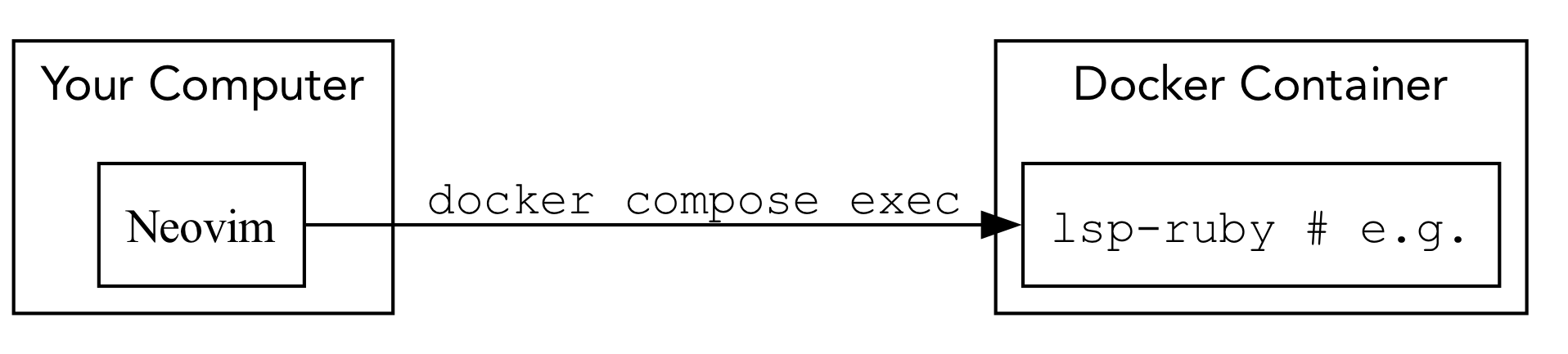
The way I set up my projects, I have a script called dx/exec that does just this. dx/exec bash will run Bash, dx/exec bin/setup will run the setup script, etc.
The command you ultimately want to run isn’t just the LSP server command. You need to run Bash and have Bash run that command. This is so your LSP server can access whatever environment set up you have.
To do this, you want Neovim to run docker compose exec bash -lc «LSP Server command». -l tells Bash to run it as a login shell. You need this to simulate logging in and running the LSP server, which is what is expected outside Docker. -c specified the command for bash to run.
Given that I have dx/exec to wrap docker compose exec, here is what my configuration looks like:
```plain text
local lspconfig = require('lspconfig')
lspconfig.ruby_lsp.setup({
cmd = { 'dx/exec', 'bash', '-lc', 'ruby-lsp', },
-- More to come
})
lspconfig.cssls.setup({
cmd = { 'dx/exec',
'bash',
'-lc',
'npx vscode-css-language-server --stdio' },
-- More to come
})
lspconfig.ts_ls.setup({
cmd = { 'dx/exec',
'bash',
'-lc',
'npx typescript-language-server --stdio' },
})
```
Note that this is somewhat meta. cmd expects a list of command line tokens. Normally, npx typescript-language-server --stdio would be considered three tokens. In this case, it’s a single token being passed to bash, so you do not break it up like you would if running everything locally.
Once they are running, you’ll need to make further tweaks to get them to talk to Neovim in a way that will work.
## Making LSP Servers Inside Docker Work with Neovim
The “protocol” in LSP is based around paths to files and locations in those files. This means that both Neovim and the LSP server must view the same files as having the same path. When they both run on the same computer, this is how it is.
In a Docker-based dev environment, the container is typically configured to mount your computer’s files inside the container, so that changes on your computer are seen inside the Docker container and vice-versa. If the filenames and paths aren’t identical, the LSP servers won’t work.
Consider a setup where /home/davec/Projects/my-awesome-app is the path to the code is on my computer, but I’ve mounted it inside my development container at /home/appuser/app:
A diagram showing your computer and a Docker container. Inside your computer is a folder labeled /home/davec/Projects/my-awesome-app. It has a bi-directional line to a folder inside the Docker container labeled /home/appuser/app.

When the LSP Server tells NeoVim that a symbol is defined in /home/appuser/app/foo.br, Neovim won’t find it, because that file is really in /home/davec/Projects/my-awesome-app/foo.rb.
### Ensuring the LSP Server and NeoVim Use the Same Paths
What you want is for them to be mounted in the same location.
A diagram showing your computer and a Docker container. Inside your computer is a folder labeled /home/davec/Projects/my-awesome-app. It has a bi-directional line to a folder inside the Docker container also labeled /home/davec/Projects/my-awesome-app.

In my case, I use Docker Compose to configure the volume mapping, so here’s what it should look like:
```plain text
services:
app:
image: «image name»
init: true
volumes:
- type: bind
source: "/home/davec/Projects/my-awesome-project"
target: "/home/davec/Projects/my-awesome-project"
consistency: "consistent"
working_dir: "/home/davec/Projects/my-awesome-project"
```
Note that because docker-compose.yml can interpret environment variables, you can replace the hard-coded paths with ${PWD} so it can work for everyone on your team (assuming you run docker compose up from /home/davec/Projects/my-awesome-project).
```plain text
services:
app:
image: «image name»
init: true
volumes:
- type: bind
source: ${PWD}
target: ${PWD}
consistency: "consistent"
working_dir: ${PWD}
```
This works great…for files in your project. For files outside your project, it depends.
### Files Outside Your Project Must Have the Same Paths, Too
For JavaScript or TypeScript third party modules, those are presumably stored in node_modules, so the paths will be the same for the LSP server inside the Docker container and to Neovim. Ruby gems, however, will not be, at least by default.
The reason this is important is that you may want to jump to the definition of a class that exists in a gem, or view its method signature or see its documentation. To do this, because the LSP server uses file paths, the paths to e.g. HTTParty’s definition must be the same inside the Docker container as they are to Neovim running on your computer.
The solution is to set GEM_HOME so that Ruby will install gems inside your project root, just as NPM does for JavaScript modules.
This configuration must be done in both ~/.profile and ~/.bashrc inside the Docker container, since there is not a normal invocation of Bash that would source both files. I have this as bash_customizations which is sourced in both files. bash_customizations looks like so:
```plain text
export GEM_HOME=/home/davec/Projects/my-awesome-app/local-gems/gem-home
export PATH=${PATH}:${GEM_HOME}/bin
```
You’ll want to ignore local-gems in your version control system, the same as you would node_modules.
Now, re-install your gems and jumping to definitions will work great.
This leads to an obvious question: how do you jump to a definition?!
## Configuring Neovim to use LSP Commands
lsp-config does set up a few shortcuts, which you can read in their docs. This isn’t sufficient to take advantage of all the features. You also can’t access all the features simply by creating keymappings. Some features must be explicitly enabled or started up.
Of course, you don’t want to set any of this up if you aren’t using an LSP server. This can be addressed by putting all setup code in a Lua function that is called when the LSP “attaches”. This function will be called on_attach and we’ll see it in a minute (note that I’m adding some configuration for Ruby LSP to make inlay hints work, as I couldn’t find a better place to do that in this blog post :).
```plain text
local lspconfig = require('lspconfig')
lspconfig.ruby_lsp.setup({
cmd = { 'dx/exec', 'bash', '-lc', 'ruby-lsp', },
→ on_attach = on_attach,
→ init_options = {
→ featuresConfiguration = {
→ inlayHint = {
→ enableAll = true
→ }
→ },
}
})
lspconfig.cssls.setup({
cmd = { 'dx/exec', 'bash', '-lc', 'npx vscode-css-language-server --stdio' },
→ on_attach = on_attach,
-- More to come
})
lspconfig.ts_ls.setup({
cmd = { 'dx/exec', 'bash', '-lc', 'npx typescript-language-server --stdio' },
→ on_attach = on_attach,
-- More to come
})
```
on_attach will do two things: 1) set up keybindings to call the Lua functions exposed by lsp-config (which will then make the right calls to the right server), and 2) enable various LSP features that are off by default.
Here’s how I have mine set up (you may want different keybindings). I’ve commented what each does:
```plain text
local on_attach = function(client, bufnr)
local opts = { buffer = bufnr, noremap = true, silent = true }
-- When on a symbol, go to the file that defines it
vim.keymap.set('n', 'gd', vim.lsp.buf.definition, opts)
-- When on a symbol, open up a split showing files referencing
-- this symbol. You can hit enter on any file and that file
-- and location of the reference open.
vim.keymap.set('n', 'gr', vim.lsp.buf.references, opts)
-- Open up a split and show all symbols defined in the current
-- file. Hitting enter on any symbol jumps to that location
-- in the file
vim.keymap.set('n', 'gs', vim.lsp.buf.document_symbol, opts)
-- Open a popup window showing any help available for the
-- method signature you are on
vim.keymap.set('n', 'gK', vim.lsp.buf.signature_help, opts)
-- If there are errors or warnings, go to the next one
vim.keymap.set('n', 'dn', function() vim.diagnostic.jump({ count = 1, float = true }) end)
-- If there are errors or warnings, go to the previous one
vim.keymap.set('n', 'dp', function() vim.diagnostic.jump({ count = -1, float = true }) end)
-- If you are on a line with an error or warning, open a
-- popup showing the error/warning message
vim.keymap.set('n', 'do', vim.diagnostic.open_float)
-- Open the "hover" window on a symbol, which tends to show
-- documentation on that symbol inline
vim.keymap.set('n', 'K', vim.lsp.buf.hover, opts)
-- While in insert mode, Ctrl-Space will invoke Ctrl-X Ctrl-o
-- which initiates completion to show a list of symbols that
-- make sense for autocomplete
vim.api.nvim_set_keymap('i', '<C-Space>', '<C-x><C-o>', { noremap = true, silent = true })
-- Enable "inlay hints"
vim.lsp.inlay_hint.enable()
-- Enable completion
vim.lsp.completion.enable(true, client.id, bufnr, {
autotrigger = true, -- automatically pop up when e.g. you type '.' after a variable
convert = function(item)
return { abbr = item.label:gsub('%b()', '') } -- NGL, no clue what this is for but it's needed
end,
})
-- If the LSP server supports semantic tokens to be used for highlighting
-- enable that.
if client and client.server_capabilities.semanticTokensProvider then
vim.lsp.semantic_tokens.start(args.buf,args.data.client_id)
end
end
-- The documentation said to set this for completion
-- to work properly and/or well. I'm not sure what happens
-- if you omit this
vim.cmd[[set completeopt+=menuone,noselect,popup]]
```
Whew! The lsp-config documentation can help you know what other functions might exist, but the setup above seems to use most of them, at least the ones for Ruby that I think are useful.
Once this is all set up, you will find that the CSS and JavaScript LSP Servers still don’t work.
## Getting Microsoft’s LSP Servers to Work Because They Crash By Default
Once I had Ruby working, I installed CSS and TypeScript and found that they would happily complete any single request and then crash. Apparently, they assume the editor and server are running on the same computer and use a process identifier to know if everything is running normally.
Since this would not work with Docker (the process IDs would be different or not available), you need to configure both LSP servers in lsp-config to essentially not care about process IDs.
```plain text
lspconfig.cssls.setup({
cmd = { 'dx/exec',
'bash',
'-lc',
'npx vscode-css-language-server --stdio' },
on_attach = on_attach,
→ before_init = function(params)
→ params.processId = vim.NIL
→ end,
})
lspconfig.ts_ls.setup({
cmd = { 'dx/exec',
'bash',
'-lc',
'npx typescript-language-server --stdio' },
on_attach = on_attach,
→ before_init = function(params)
→ params.processId = vim.NIL
→ end,
})
```
This is all great, but you may not want Neovim trying to connect to LSPs when you have not set them up.
## Don’t Configure LSP if It’s Not Available
When I open up a random Ruby script on my computer, I get errors about LSP servers not being available. What I decided to do was configure LSP as opt-in in my Neovim configuration.
If the Lua setup script finds the file .nvim.lua in the project root, it will source it. If that file sets useLSP to true, all of the above configuration happens. If useLSP is absent, no LSP configuration is done:
```plain text
local project_config = vim.fn.getcwd() .. "/.nvim.lua"
if vim.fn.filereadable(project_config) == 1 then
dofile(project_config)
end
if useLSP == nil then
useLSP = false
end
if useLSP then
-- configuration from above
end
```
## And Now We Can Work!
I’ve been using this configuration for a few days and to be honest, I can’t quite tell how well it’s working. But it doesn’t seem that fragile, and it seems useful to have setup in case other extensions or LSP servers become very useful.